Use Hermit
Chat
What you see while Hermit works, what a Review button means, and where memory and models live.
Chat is the box that says “How can I help?”. You type the way you’d talk, and Hermit answers with a model running on your phone or Mac. It works with Wi-Fi off.
The chat box
Section titled “The chat box”On the left are + and the paperclip. + gives you Add a file, Add a photo (iPhone), Commands and Project. On the right is the model menu, then Send. While Hermit is answering, Send turns into a stop button.
Type / to see the commands. Today there’s one, /remember, which saves a line to long-term memory. On a Mac, ⌘Return sends.
If you send while a reply is still running, Hermit keeps your text and says “Hermit is still replying. Wait, or tap stop.”
The step line and steps
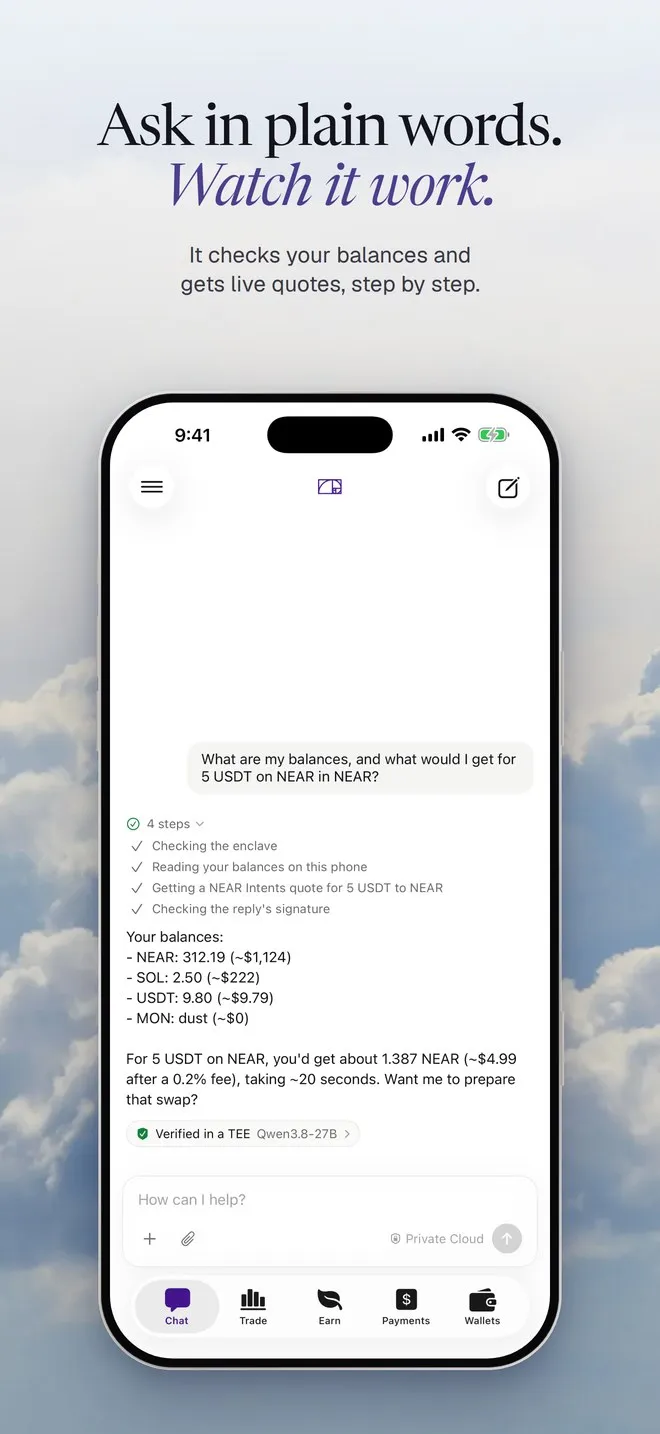
Section titled “The step line and steps”When Hermit needs live data or has to prepare something, a small line with a spinner shows what it’s doing right now:
What's the HYPE price?
- Checking the HYPE price
The price and the 24-hour change, in a sentence or two.
How much NEAR would 20 USDC on Base get me?
- Getting a NEAR Intents quote for 20 USDC to NEAR
A live quote: about how much NEAR, the cost and the time. Nothing is prepared.
When the reply is done, the line folds into a green check and “1 step” or “3 steps”. Tap it to see each step Hermit took. You never see the raw tool calls, only these lines.
Cards and Review buttons
Section titled “Cards and Review buttons”Some replies end with a card (a batch send’s rows, a receipt) or buttons. A black button that starts with Review, like Review long ETH, Review send or Review deposit, opens the review for that move.
Long ETH with $50 at 5x
- Preparing the order for your review
A Review long ETH button. Tap it to see the size, margin, liquidation estimate and fee.
The assistant can’t see the review, so it doesn’t know whether you approved. If it ever says money moved when it couldn’t know, the app adds: “To be clear: I can’t see approvals or results from here, so I don’t know whether that went through. Activity in Wallets shows what actually happened.” And if it says something is ready when nothing was prepared, you’ll see “Nothing is waiting for your approval yet.”
The assistant also has limits of its own, like $100 per move. They’re on Spending policy.
Saved chats
Section titled “Saved chats”Every chat is saved in a file on your phone or Mac. There’s no account and no server of ours, so nobody else has a copy. Your chats show up under Recents in the sidebar (the menu at the top left on iPhone).
To delete one, right-click it on a Mac or long-press it on iPhone, pick Delete, and confirm. The chat and its messages are removed from the device.
Long-term memory
Section titled “Long-term memory”Hermit follows a short list of notes in every new chat. It’s a plain file called hermit.md, and it never leaves your device.
- Open Settings, then Memory.
- Write one note per line, like
- I live in Berlin, show prices in euros. - Tap Save. You’ll see “Saved, used from your next chat”.
You can also add a note from chat:
Remember that I like answers short, numbers first
- Updating hermit.md
“Saved to hermit.md. I’ll follow it from your next chat on.” The note shows under it.
Models
Section titled “Models”Tap the model name next to Send, or open Settings, then Models. You can download, switch and delete models there. Hermit 1.2 is the full model (about 2.3 GB, for devices with 7 GB of memory or more). Hermit 1.1 Lite is about 1 GB for smaller iPhones. Picking Use starts a new chat with that model. Model and tools has the details.
The same menu switches chat to Private Cloud when a question is too big for the phone.